
Kerberos from a Container
This article describes how to perform Kerberos authentication from a Linux container. After authentication, processes inside the container can interact with environments that require Windows identity.
Also: an overview of authentication configurations.
In my previous article I described in detail how to build a monitoring and automation stack for performing operations in a cloud environment.
While that article explicitly targets GCP, the principles apply equally to other cloud providers.
The end result is a container that runs scheduled tasks and communicates with both the corporate network and other cloud services.
After publishing that article I was asked about connecting to an On-Prem mail server whose security settings enforce Kerberos authentication.
That is the topic of this article, which will be considerably shorter than the previous ones.
Authentication configurations:
In the previous article we saw how to send an explicit request for an Access Token - and how to use it to access resources.
Without stating it explicitly, we assigned permissions to service accounts in GCP, giving them access to various APIs.
These permissions operate in an implicit mode. That means once the permission is granted, the account silently fetches an Access Token for the authorized target behind the scenes.
We also saw a username-and-password authentication flow that opens a Session. As long as the Session is alive, the permission remains valid based on that identity.
Now I will present (briefly) the Kerberos authentication model, and then explain how to use it from a container when connecting to a domain environment.
Kerberos:
In Kerberos authentication, the client never sends its password to any server or other machine on the network.
Instead of sending a password, the client receives from the service a message encrypted with the client’s own password. The client decrypts the message locally and obtains an encryption key to be used in subsequent communication steps.
Without going through every step of what sounds like a chain reaction, authentication between the client and network resources relies on encrypted tickets. The client and services exchange these tickets instead of passwords, and password usage is limited to encrypting the initial message only.
The encrypted ticket also contains information about the client side. This makes Kerberos a significantly better authentication method than username and password, because:
- Passwords never travel over the network
- The permission granted to the client in the form of a ticket is valid only for the workstation from which the user made the initial authentication request
For each new service or resource the client wants to access, it must use its existing encrypted tickets to authenticate and request a dedicated service ticket. This design greatly reduces the risk of credential theft from one machine being reused elsewhere.
For this reason, some environments and services block legacy authentication methods and require Kerberos where it is available.
Authenticating and Using Kerberos from a Linux Container:
Take the case I was asked about - an On-Prem Exchange server accessible only via Kerberos.
If we want to query that server or perform actions such as modifying, deleting, or disabling mailboxes, the approach shown in the previous article will not work. We need to extend (or replace) the container’s capabilities and then interact with the mail server differently.
To enable authentication against an Active Directory environment, the previous article used NTLM mode. The container shown there includes the gss-ntlmssp package for that purpose. To use Kerberos, we add or replace it with the following package: krb5-user.
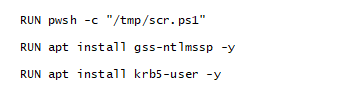 Installing Windows authentication packages inside the Dockerfile
As shown in the image, simply add the package installation to the Dockerfile.
Sending requests and authenticating:
From within the container we run a script that performs authentication and then uses that identity to access resources.
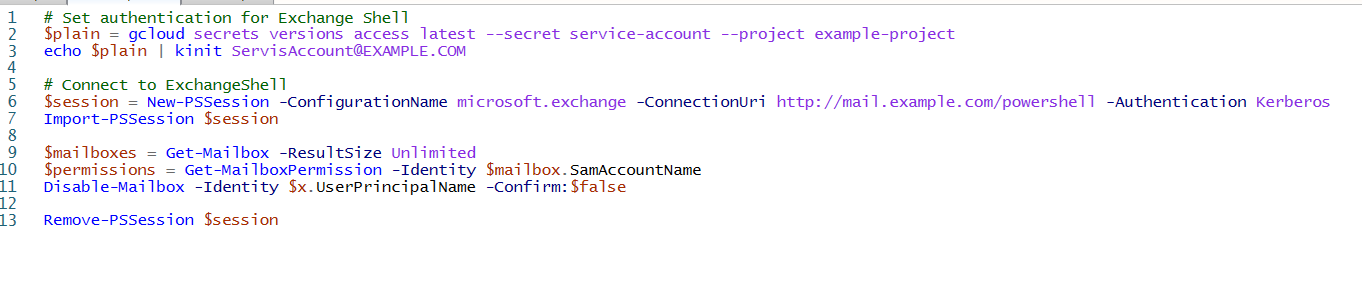
Here is what it looks like:
# Set authentication for Exchange Shell
$plain = gcloud secrets versions access latest --secret service-account --project example-project
echo $plain | kinit ServisAccount@EXAMPLE.COM

# Connect to ExchangeShell
$session = New-PSSession -ConfigurationName microsoft.exchange -ConnectionUri http://mail.example.com/powershell -Authentication Kerberos
Import-PSSession $session

$mailboxes = Get-Mailbox -ResultSize Unlimited
$permissions = Get-MailboxPermission -Identity $mailbox.SamAccountName
Disable-Mailbox -Identity $x.UserPrincipalName -Confirm:$false

Remove-PSSession $session
Script for working against the mail server
Explanation of the steps:
- The first line retrieves the user password from Secret Manager.
- The script then uses the password for Kerberos authentication.
- Note that the password never leaves the container.
- Observe that theechocommand is only used to pipe the password into the authentication pipeline and does not appear in the container logs.
- Pay attention when specifying the username for thekinitcommand. The domain name MUST be written in uppercase letters!
- After authentication, a ticket exists in the system for the identity of the service account that performed the login. - When sending a request to a service that requires Kerberos authentication, the client checks which tickets it currently holds and uses the one that was issued to it.
- The client establishes a connection to Exchange Shell.
- The client can now perform operations on the mail server.