
Monitoring and Automation in the Cloud
An overview of a monitoring and automation system in a cloud environment. A system for monitoring, reporting, and automating cloud infrastructure, combining various components from Microsoft and Google cloud environments.
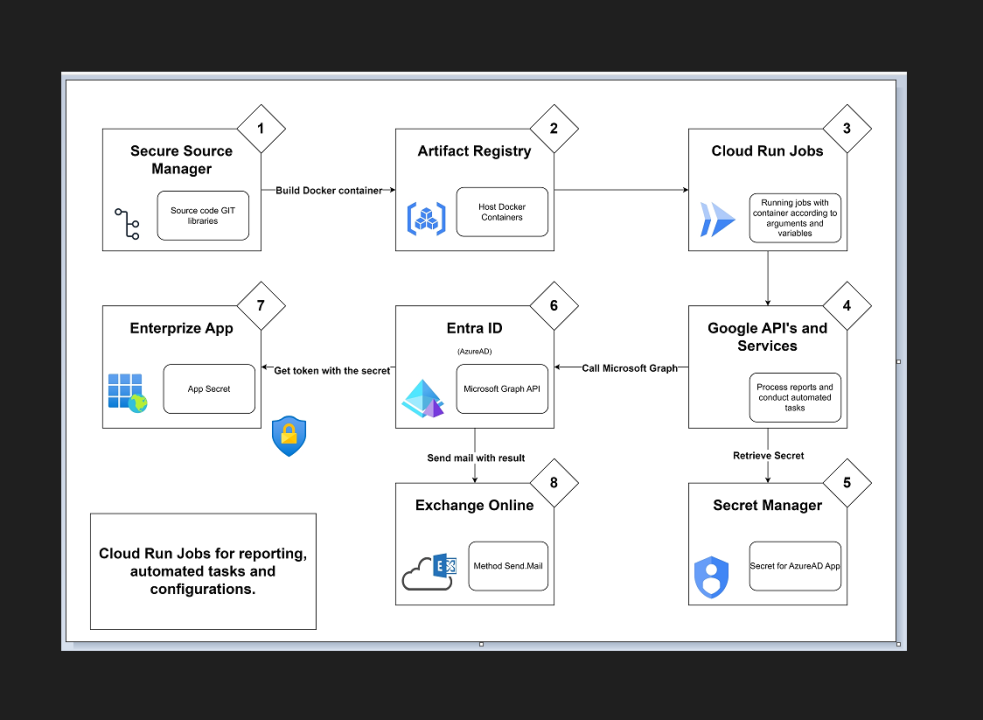
In the following article I will explain how various monitoring and automation operations for computing infrastructure can be managed in a GCP environment. Some of the monitoring and automation operations are handled through scripts and scheduled tasks that run these scripts on a fixed schedule.
Summary:
Running those tasks in the cloud environment is done through scheduled Jobs that run containers in the Cloud Run service. The containers already contain all the scripts.
A Job is configured so that when it runs, it calls PowerShell. As an argument it passes to PowerShell the name and path of the script to be run in that Job.
The script performs its operation, and finally when it has results, it proceeds to execute the email-sending procedure.
The email-sending procedure approaches Secret Manager to get a Secret of an application in AzureAD. With the Secret, a request is made to the Microsoft Graph API to get a Token. The Token is put into the Modern Authentication format to authenticate identity against Exchange Online. Then another request is made to the Microsoft Graph API that activates the email-sending method.
Operations Diagram:
Monitoring and automation system diagram
General Description of the Components:
Secure Source Manager:
GCP’s GIT service where all the scripts and files required for running the tasks are stored. Like any GIT Repository, you can manage versions and set access permissions to the Repository. Since this is in Google’s cloud, permissions are managed through Cloud Identity.
You create an Instance of the service, then connect and open a Repository. This is where all the files reside that manage the monitoring, reporting, and automation tasks related to cloud environment management.
A Webhook is configured in the Repository that triggers a Build in Cloud Build every time there is a push to the repository.
Cloud Build:
In Cloud Build a Trigger is configured that activates a Build sequence and builds a container every time the Webhook in the Repository is triggered.
The Trigger copies the contents of the Repository. Then using the Dockerfile that is there, the Build builds a Container Image. The container knows how to run PowerShell, Google CLI SDK, and contains a folder with an up-to-date copy of the Repository.
The created container is uploaded to Artifact Registry.
Artifact Registry:
GCP’s Image storage service. This is where the Images from which containers are run are uploaded. The Image used to run the task containers is an Image that contains PowerShell as well as Cloud SDK (gcloud, gsutil, bq), which we can call gcloud-pwsh. It is always best to run the latest version of it, as it should contain all the most up-to-date files from the Repository.
Cloud Run Jobs:
Cloud Run is a GCP service that runs containers without needing to worry about the infrastructure that runs them. A Job will execute a task using a container, and upon completion the container will shut down and be deleted.
For each report we want to generate and each automation task we want to perform, we need to create a Job. If the Job is a scheduled task that needs to run at a certain frequency, a Trigger needs to be created that will activate it at the required times.
When creating a Job you need to configure it to run using the service account created for this task. That account has Viewer permissions at the level of the entire organization and all projects.
- If there is an automation task that requires permissions to perform operations and changes, it will run using a dedicated service account for that task. An account that receives exactly the permissions required for that task.
Running the Program:
When the Job is activated - either manually or according to a schedule - a container starts up and runs the code that processes the data and collects the required information.
In some cases the scripts will perform alignment operations. For example - to verify that a certain configuration exists in all projects, or that all networks are connected to some DNS service we defined.
In monitoring cases, we will want to produce some output that is sent by email to recipients. In such a case we will need to create an email template that can include the output and be sent to the recipients we define.
As mentioned, every script that is written and intended to be uploaded to the Repository in order to work in this configuration, needs to export the output and attachments as specified above. Then a call is inserted to the script that sends the email.
Email sending is carried out using the following components in the system.
Enterprise App:
A service within Entra ID (AzureAD) that enables interfacing between Entra ID and other services and applications. This allows connecting to those services or using them, through Entra ID’s authentication and filtering systems.
There you need to create a custom application for this action. We will call it GCP-Monitor. In the App Registration service (also within Entra ID), you can edit working configurations and application details. There a Secret is created that enables external code-based authentication against the application.
The Secret must be renewed every six months.
The application was granted permission to perform the Send.Mail method in the Microsoft Graph API.
Exchange Online:
Microsoft’s cloud email service (SAAS).
In a Microsoft environment - such as EntraID or a hybrid environment that synchronizes to EntraID - we will create a service account and call it GCP-Monitor-Mail. We will create a mailbox for it in Exchange Online. Through this mailbox all email-sending from all processes running through Cloud Run Jobs will occur. We will then configure email-sending options through Microsoft Graph. Some configurations need to be done through Exchange Shell - the Microsoft Exchange command line.
We will set a Policy that restricts the application’s email sending, only through members of the group we will open for this purpose. The sole member of the group is the service account through which emails will be sent - GCP-Monitor-Mail.
Secret Manager:
A GCP service for managing passwords and sensitive information that should be encrypted. Such information is not placed directly in the code. In this way, anyone who edits or runs the code does not have access to passwords.
The GCP-Monitor-Mail service account that runs the Job has access to a specific Secret. This contains the App Secret of the GCP-Monitor application. Using that Secret it is possible to send the email.
Every six months the Secret must be renewed in Entra ID and then updated in Secret Manager.
- Even the Secret renewal procedure can be configured through automation, or at least an alert that announces the Secret’s expiration in advance.
The Email-Sending Procedure:
-
The process collects the Secret of the GCP-Monitor application from Secret Manager. Then using the Secret it approaches the Microsoft Graph API and receives a Token.
-
The process collects the recipient details and attachments within the container running the process.
-
The process collects the email message configuration from the mail-body file created in the same location.
-
The process collects the JSON template for sending email from the msg-template.txt file. This file sits together with all the other code files that entered the container from the Repository.
-
The process builds a new JSON based on the template, calculating the recipients and attachments (if any), to which the reference to the actual email message configuration is added, as collected from the mail-body file.
-
The process makes a request to the Microsoft Graph API, and there activates the Send.Mail method to send the email. Authentication and verification are done using the Token collected in step 1. The email configuration and details are included in the JSON created during the process.