
Automatic Controlled Unlock of Locked Users
A script for automatically and controllably unlocking locked Active Directory accounts. It reduces helpdesk calls while still maintaining security.
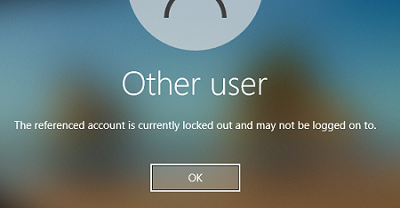
Background:
“Brute Force Attack” - in free translation, brute force. It is one of the most basic and oldest methods of cracking passwords: systematically trying every possible combination until the correct one is found.
The most common and simple defense against this type of attack is lockout - either locking the user account, locking the IP address from which the login attempt originated, or both. Like every security solution, this one requires a balance between protecting the system from intrusion and allowing users to work with minimal disruption. There are various security tools and solutions that address this issue, but here I will focus on the simple tools that come with Microsoft systems.
Microsoft’s Group Policy can release a lockout automatically after a defined period of time. The same applies to the Fine-Grained Password Policy, which can be configured through Active Directory Administrative Center, as well as the connection and security settings in Azure.
The problem:
The problem with all of these is that they are blunt, one-size-fits-all tools. Even a policy configured in Administrative Center can distinguish between groups - defining that for members of a specific group the lockout is only released by an administrator, while everyone else is released after a time period. But for those with a time-based policy, the cycle repeats without any oversight, even if the account gets locked dozens of times for the same reason. It does not matter whether the cause is a technical issue or a break-in attempt.
The solution:
I was therefore asked to write a script that performs controlled release of lockouts. The goal is to ensure automatic and fast unlocking of users locked out due to repeatedly entering an incorrect password - which saves helpdesk calls - while serial lockouts require manual administrator review before release. In addition, there is an option to differentiate between human users and service accounts used by applications, scheduled tasks, and so on. When those accounts are locked, you want to be notified quickly and fix the issue, since any process depending on that account will stop working.
The script appears below. After that I will explain its operation in detail and how to customize it for your needs.
Note:
The best approach is to copy the script into PowerShell ISE, make your edits there, and save it to a file. Then schedule it to run as a scheduled task at a defined interval.
As always, I tried to write the script in a readable and clear manner, and I added documentation and explanation lines throughout the script body. The explanations here will reference line numbers as the script appears in PowerShell ISE.
The script:
# This function taking some data and send it by mail
function Table-ToMail {
    param ($data, $title, $receiver)


    # Form a table of the banned accounts.
    $style = "<style>BODY{font-family: Arial; font-size: 10pt;}"
    $style = $style + "TABLE{border: 1px solid black; border-collapse: collapse;}"
    $style = $style + "TH{border: 1px solid black; background: #dddddd; padding: 5px; }"
    $style = $style + "TD{border: 1px solid black; padding: 5px; }"
    $style = $style + "</style>"
    $body = ""
    $header = "<h2>" + $title + "</H2>"
    if ($data -ne $null){$body += $data | select name, samaccountname | ConvertTo-Html -Head $style -PreContent $header}


    # Configure mail sending.
    $messageParameters = @{
        subject = $title
        body =$body | Out-String
        from =  "<alert@domain.suffix>"
        to = $receiver
        smtpserver ="smtp.server.domain.suffix"
    }


    # send mail if there is data to send.
    if ($body -ne ""){
        Send-MailMessage @messageParameters -BodyAsHtml -Encoding Unicode
        Write-Host Mail Sent
    }
}


# Get Locked accounts from AD - only enabled accounts.
$locked = Search-ADAccount -LockedOut | ?{$_.enabled -eq $true}


# Get the old log from file - make sure isn't long than 10,000 raws.
$log = (Get-Content C:\log.log)[(-10000)..(-1)]
Clear-Content C:\log.log
$log | Add-Content C:\log.log


# Filter to get onnly raws that log unlock-account action.
$log = $log | ?{$_.indexof(";") -ne -1}


# Get record of accounts which are locked and should not get auto-unlocked.
$banned = Import-Csv C:\banned.csv
$banned = $banned | ?{$_.samaccountname -in $locked.samaccountname}


# Accounts which have been banned  on last check, and now got unlocked.
$cleared = $banned | ?{$_.samaccountname -notin $locked.samaccountname}


$bannednow = @()
$sysaccounts= @()


# Running through all locked accounts to sort and proccess it.
foreach ($user in $locked) {


    # Get the locked account from AD - including the groups which it's member-of.
    $y = Get-ADUser -Identity $user.samaccountname -Properties memberof | select name, samaccountname, memberof
    # From the groups, get the Type of the account.
    $y | Add-Member -Force -MemberType NoteProperty -Name "Group" -Value ($y.MemberOf | ?{$_.substring(0,8) -eq "CN=group"} | %{$_.split(",")[0].substring(3)})
    # Add date for the log.
    $y | Add-Member -Force -MemberType NoteProperty -Name "Time" -Value (Get-Date -Format "dd/MM/yyyy HH:mm")


    # Reffer to accounts that represent a persone.
    if ($y.Group -eq "group.a" -or $y.Group -eq "group.b" -or $y.Group -eq "group.c") {
        # Get from the log how many times the account had been unlocked in the last 30 minuts.
        $unlocks = $log | ?{$_.split(";")[1] -eq $y.name} | ?{((Get-Date) - ([datetime]::parseexact($_.split(";")[0], "dd/MM/yyyy HH:mm", $null))).Minutes -lt 30}

        # If the account already unlocked more 2 times in the last 30 minutes, or the account already in the Banned list.
        if ($unlocks.count -gt 1 -or $y.samaccountname -in $banned.samaccountname) {
            # If the account is not in the banned list.
            # This nested condition intended to make sure that in case the account already banned, do nothing.
            # Action shall be done only if the account doesn't banned and locked more than 2 times in the last 30 minutes.
            if ($y.samaccountname -notin $banned.samaccountname) {
                $bannednow += $y | select Name, SamAccountName, Group
            }
        } else {
            # If account is not banned and had not been locked more than 2 times in the last 30 minuts,
            # Unlock the account and log it to the log file.
            $user | Unlock-ADAccount
            $y.Time.ToString() + ";" + $y.name + ";" + $y.Group + ";Auto-Unlocked"| Add-Content C:\log.log
        }
    } else {
        # Reffer to accounts that  NOT represent a persone.
        $sysaccounts += $y | select Name, SamAccountName, Group
    }
}


# Log the accounts that are added to the banned list.
if ($bannednow -ne $null) {
    "=====================================================" | Add-Content C:\log.log
    $y.Time.ToString() + "      " + "Banned Users: " | Add-Content C:\log.log
    "=====================================================" | Add-Content C:\log.log
    foreach ($x in $bannednow) {$x.samaccountname | Add-Content C:\log.log}
    "=====================================================" | Add-Content C:\log.log
}


# This accounts doesn't auto-unlocked, and added to the banned list, awaiting for someone to check the problem and unlock it.
$banned += $bannednow
$banned += $sysaccounts | ?{$_.SamAccountName -notin $banned.SamAccountName}


# Log the accounts from Banned list, that had been unlocked since last check.
if ($cleared -ne $null){
    "=====================================================" | Add-Content C:\log.log
    $y.Time.ToString() + "      " + "cleared Users: " | Add-Content C:\log.log
    "=====================================================" | Add-Content C:\log.log
    foreach ($x in $cleared) {$x.samaccountname | Add-Content C:\log.log}
    "=====================================================" | Add-Content C:\log.log
}


# Send data
Table-ToMail -data $banned -title "All Locked Accounts" -receiver "<system@domain.suffix>"
Table-ToMail -data $bannednow -title "Users Got Locked!" -receiver "<support@domain.suffix>"


# Export Banned list for next check.
$banned | Export-Csv -NoTypeInformation -Encoding UTF8 -Path C:\banned.csv.
How the script works:
Setup and functions:
- A function is defined that sends data by email. The function accepts 3 parameters - a variable containing the data, a title, and a recipient. It arranges the locked user data into a table and sends it to the defined recipient.
- Active Directory is searched for all currently locked enabled accounts, which are placed into a variable.
- Data from all previous runs, collected in a log file, is loaded into a variable. The last lines are extracted from the log, up to 10,000 lines - no more.
- The log file is reset and the collected lines are written back. This ensures the file never contains significantly more than 10,000 lines.
Collection and sorting:
- From the log data we loaded, filtering keeps only lines that contain information about an account unlock action.
- A CSV file containing users that were already locked during a previous run is loaded into a variable.
- From that variable, a new variable is populated with users who were blocked in a previous run and are still currently blocked.
- Another variable is populated with users who were blocked in a previous run but are no longer blocked.
Data processing:
- A loop is created that iterates over each locked account found in the current Active Directory search.
- For each locked account, that account is retrieved from Active Directory and the following attributes are stored in a variable: name, username, list of groups the account belongs to.
- The name of a specific group the account belongs to is added as an attribute to the new variable. This is useful when all accounts in Active Directory are divided into two (or more) groups that define whether the account represents a human user or a resource, service, application, etc.
Assuming these groups follow a naming pattern such as “accounts-personal” vs “accounts-service”, you can define in line 58 afterCN=the common prefix of the groups you want to identify. For example, you could addaccountsafterCN=and then update thesubstringvalue to 11 - the total character count ofCN=plus the 8 characters of the wordAccounts. - A timestamp in a specific format is collected and added as an attribute to the variable holding the current account’s details.
- A nested condition is evaluated. If the group saved in step 3 (line 58 in the script) matches the group indicating a human user:
- a. The log is checked against the current timestamp. It counts how many records carry a timestamp from the last 30 minutes and report unlocks of this account.
- b. A nested condition (inside the previous one) - still assuming this is a human user account.
If more than one unlock record was found - meaning this is already the third lockout within 30 minutes - or if the account is already on the blocked list:-
- A third nested condition: if the account is not yet on the blocked list - add it to the list of accounts blocked right now.
-
- c. Otherwise - the account is not on the blocked list and has not been locked more than twice in the last 30 minutes. The lockout is released and an entry with a timestamp is written to the log.
- Otherwise - if this is not a human user account, add it to the list of service/application accounts that are currently locked.
- Once the loop finishes iterating over all locked accounts, the results can be used.
Reviewing the results:
- If the list of human users blocked right now is not empty - add a log entry documenting this list.
- To the blocked list from the previous run, add those blocked right now - both human and service accounts.
- If the list of users who were cleared (from item 8 in the collection section) between the last run and now is not empty - add a log entry for the users who left the blocked list.
- Calls to the email function - the following data can be sent by email:
- All currently blocked accounts (from this run combined with previous runs)
- All accounts blocked in the current run
- All blocked service/application accounts
- All blocked human accounts
And so on.
- Export the updated blocked list to a file.
Summary:
Anyone who does not yet classify users to distinguish between human and service accounts is strongly recommended to do so as soon as possible. This classification enables a wide range of security controls - such as a policy preventing non-human accounts from logging in via RDP.
You can classify even more granularly - separating accounts that run applications and services from accounts that run scheduled tasks. In Group Policy these are accounts logging in as a Service vs. as Batch. This lets you block the former from running scheduled tasks and the latter from logging in as a service.
There is too much to say about what user classification enables. But it is a massive stepping stone for applying various security policies, or simply for better system management.