
Script to Switch to a Single Monitor When Launching a Program
When a multi-monitor computer runs a full-screen application, the display on the secondary monitor sometimes causes problems for various reasons. The solution is a script that reduces the display while full-screen mode is active.
The single-monitor switch script addresses a common and well-known problem among people who connect more than one monitor to their computer: the inconsistent behavior of various applications when running in full-screen mode.
Sometimes you want to run Netflix on one screen without the other staying on.
Sometimes you want to run a game in full screen, but the mouse escapes from the full-screen window to the neighboring monitor.
I will present a two-step solution to this problem:
- A short script that switches to single-monitor display and then launches the program itself. When the program closes, the computer returns to multi-monitor mode.
- Instead of launching the program directly, launch it via a shortcut that points to the script.
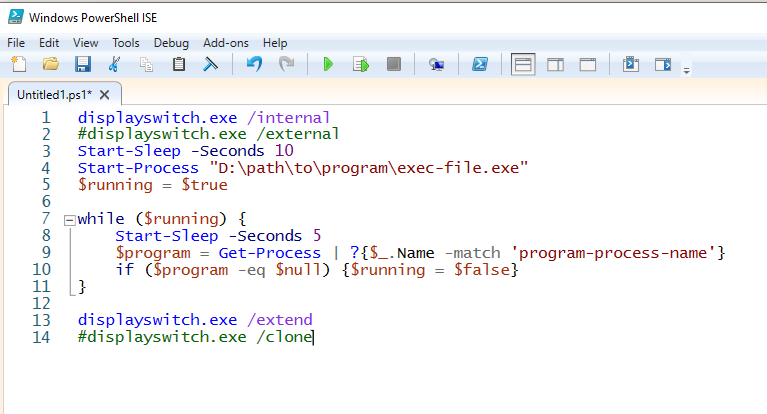
First, the script:
displayswitch.exe /internal
#displayswitch.exe /external
Start-Sleep -Seconds 10
Start-Process "D:\path\to\program\exec-file.exe"
$running = $true

while ($running) {
    Start-Sleep -Seconds 5
    $program = Get-Process | ?{$_.Name -match 'program-process-name'}
    if ($program -eq $null) {$running = $false}
}

displayswitch.exe /extend
#displayswitch.exe /clone
The script is 14 lines long. Here is how it works:
- At the start (lines 1-2) the computer is switched to single-monitor display. You need to decide which monitor you want to keep active and then comment out the appropriate line. Currently line 2 is commented out, meaning the display will be reduced to the monitor currently set as the primary monitor. If you comment out line 1 and leave line 2 active, only the monitor set as monitor number 2 will remain on.
- Next (line 3) there is a 10-second wait to ensure nothing starts before the computer has finished switching to single-monitor mode.
- Then (line 4) the script launches the desired application by calling its executable file.
- After launching the application, a loop is defined (lines 5-11). The loop checks every 5 seconds whether the program is still running. When the program is no longer running, the loop exits.
- Extended/cloned display is restored (lines 13-14). Comment out the line you do not want to run.
When adapting the script for your program, you need to adjust 4 things:
- Lines 1-2 - decide which monitor you want the display to use.
- Line 4 - provide the path to the program’s executable file.
- Line 9 - inside the loop, provide the process name that the program runs under.
- Lines 13-14 - leave uncommented the line with the display configuration you want to restore after the program exits.
Save the script and then create a shortcut that points to it.
Open the shortcut’s Properties, go to the Shortcut tab, and in the “Target” field enter the following:
powershell.exe -WindowStyle Hidden -file "D:\path\to\script\script-file.ps1"At the end, replace the path with the actual location of your script file.
Program icon:
If you want the shortcut to show the program’s own icon, on the same Shortcut tab click “Change Icon” at the bottom.
A file browser window will open for you to locate the icon. Navigate to the program’s executable file. The icon can usually be found there or in the folder where it lives.
From now on, instead of launching the program the traditional way, launch it through the new shortcut that leads to the script.