
Handling Users Who Are No Longer Domain Admins
Fixing an issue where the Help Desk cannot manage users who were previously defined as Domain Admins but no longer are, and only Domain Admins can manage them.
Cyber threats are a familiar and common reality. Every IT professional operates at some level of security practice, following procedures established to protect the system from attacks. The golden ticket that an attacker strives to obtain is Domain Admin privileges - the highest level of access (setting aside the Forest Admin discussion). A Domain Admin can grant itself permissions to every system in the domain. It can create and update users, grant them permissions, modify computers, servers, networks, and systems, and so on. The power held by a Domain Admin is nearly unlimited, so this position must be protected as much as possible.
Working in cybersecurity means finding the balance between two sides. On one hand, sealing vulnerabilities and blocking entry points through which attackers can get in. On the other hand, allowing users to move in and out for their work - and making it easy and reasonably convenient. And this is where the subject of this article comes in.
There are networks where Domain Admin permissions were granted to many people in the IT department. Sometimes even to other users who made various changes within the scope of their role. It is simply convenient. That way they can install what they want, update details, and perform operations without constantly bothering the support or infrastructure teams.
But this approach carries significant risk. It is like distributing master keys that open everything to half the employees in the building. The more keys circulating in the field, the greater the chance that one of them will be lost or stolen and end up in the wrong hands.
As time passes and awareness of cyber threats grows, many organizations are optimizing their networks and adhering more carefully to information security procedures. So in many networks the free distribution of Domain Admin permissions to users is being reduced, limiting it to infrastructure administrators only. Everyone else receives permissions exactly matching their role requirements - no more, no less.
Overview of the Problem:
In the following lines, I am going to present two problems that sometimes occur with such users. Then I will present a simple solution for addressing the problem.
- A user who was a Domain Admin - only a Domain Admin can manage them. Help Desk staff cannot reset a password for a Domain Admin, or even for someone who was previously a member of the group.
- Cross-domain situations. In environments with multiple domains, people remember to handle users who left and disable their account in the main domain. But in the side paths of other domains, all kinds of old user accounts accumulate. Some with high privileges and fixed passwords that do not rotate, and they are still active.
The first problem is a headache. The second is an information security risk. It is important to solve them in order to allow smooth and secure continued operation within the organization.
The scripts should be copied to PowerShell ISE Admin and worked on from there.
Former Domain Admin - The Problem:
As mentioned, a Domain Admin holds the highest privileges. Like in any hierarchy, a Domain Admin can change and edit the permissions of all user types. But none of them can edit the permissions of a Domain Admin. Otherwise anyone could make themselves a Domain Admin. Either by granting permission directly, or through a bypass:
- Reset the Domain Admin’s password
- Log in through the Domain Admin with the new password
- Then create a Domain Admin user for themselves
- Or promote their original user to Domain Admin as well
In short, once a user becomes a Domain Admin, no one can edit their account except another Domain Admin.
Once a user stops being a Domain Admin, they themselves lose the ability to edit other users. But this action does not automatically give other users the ability to edit their account. This is how users get stuck where only a Domain Admin can unlock their account or edit their address and phone number in their profile.
Sometimes the problem is encountered by people who were not necessarily Domain Admins, but had their permissions or group memberships changed in certain ways.
Root Cause:
In various online forums, the advice given is to reset the Attribute called adminCount. On a regular user this value is not relevant and appears as “not set”. On a Domain Admin the value 1 appears there. This value prevents users with a lower position in the hierarchy from editing details in the profile.
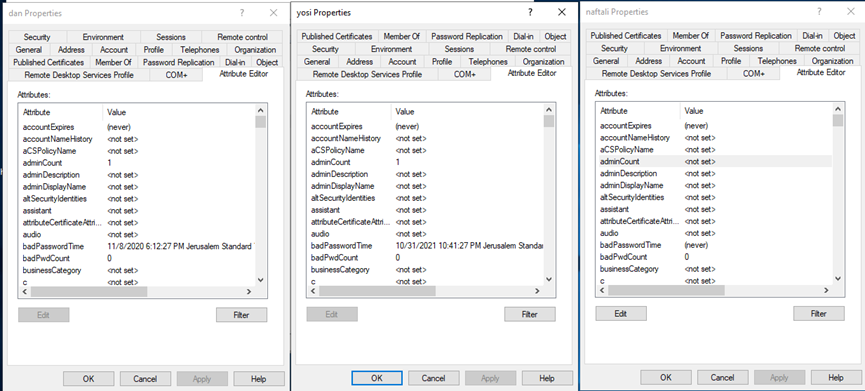 Comparison
Those who enlarge the image will see from right to left the following data:
A regular user, a user who is currently a Domain Admin, a user who was a Domain Admin and still has the Attribute set.
But simply resetting this value does not actually give others the ability to edit the profile. Not only that, but in the vast majority of cases the value will revert to 1 within a short period of time.
Why does this happen?
AdminSDHolder
Active Directory manages all its components (users, computers, OUs, groups, etc.) through various attributes. One of the most important attributes is the subject of permissions and security. As part of this, Active Directory contains several built-in groups that are essential to its operation - such as Domain Admins and a few others. For the purpose of controlling all this matter of permissions and security, Active Directory contains a component called AdminSDHolder. SD - Security Descriptor.
This object manages a list of settings designed to maintain a secure framework. Among other things, there is a list of sensitive groups in Active Directory. Once an hour a process runs over all users in these groups, and verifies that no unauthorized changes were made. If they were, the process reverts them.
So for example, a user in one of the sensitive groups contains the adminCount value. The value marks the membership, and the fact that certain things will not happen to this user. For example, Help Desk staff will not be able to edit them or reset their password. If a Domain Admin resets the adminCount value, the reset will be undone within an hour.
The Solution:
So we have understood the root cause of the problem. Those users were members of sensitive groups, and any ability to change them was blocked. They are no longer members of those groups. What do we do now?
The answer lies in permissions. Simply.
Just as there are permissions for folders and files, there is a permissions system for users, groups, and OUs in Active Directory. To gain access to editing these permissions, you need to be a Domain Admin of course. In addition you need to display Active Directory in advanced view. The advanced view allows seeing many additional components, including Attributes and also the Security tab, where permissions are managed.
Anyone who encounters the problem I mentioned can check the data themselves. Take a regular and innocuous user who has never been subject to advanced permissions, go to the Security tab on their account, and see that the support team has permissions on their account. And this is what it looks like:
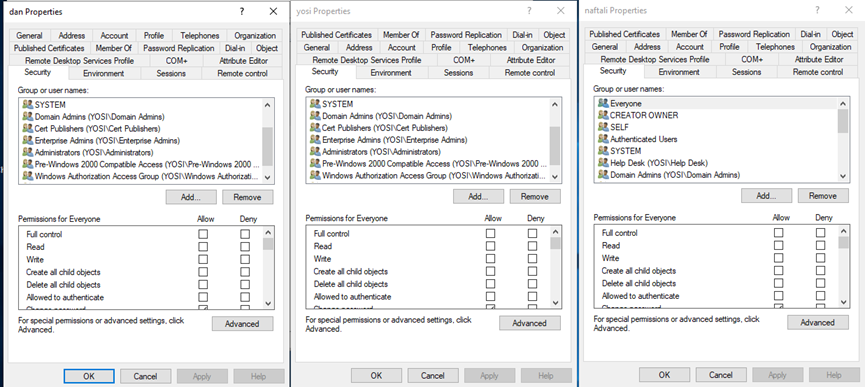 Comparison
Again in the same order, we see on the right a regular user that HelpDesk has permissions on. In the middle is a Domain Admin that HelpDesk has no permissions on. On the left sits that former Domain Admin, whose permissions situation in terms of what others have on them has not changed.
Explanation:
The explanation is simple - their permissions over others were removed, but no one bothered to grant others permissions over them. All that needs to be done is to grant HelpDesk (or whatever other party needs it) permissions on that user.
If permissions are granted on the user and after a short time they disappear, check the Member Of tab to see which groups the user belongs to. Such a user is certainly a member of one of the protected groups.
This solution is good and clean. But if we are dealing with a fairly large organization’s network, there could be many such users. But you don’t always know or remember who was there. (Not getting into the complexities of various systems that maintain detailed, impressive, and accessible records of all changes to user accounts.) There are places where we are talking about dozens of users, and a broad solution is needed.
Implementing the Solution:
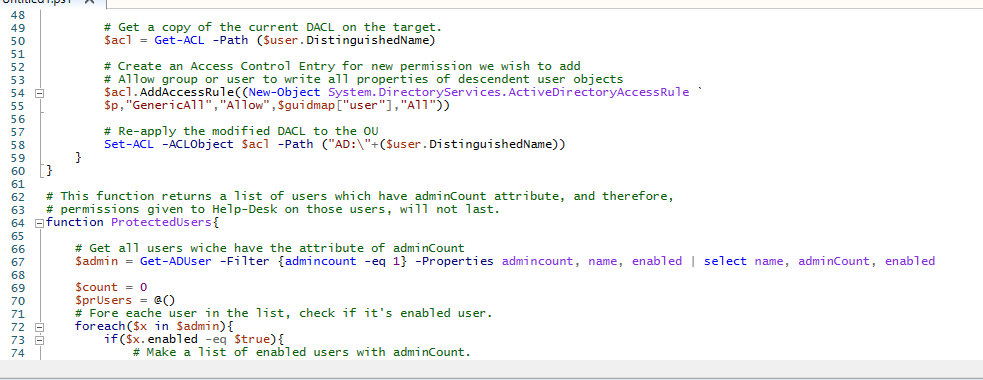
I solved this problem with a script, which I am sharing with you. The script will appear at the end as Appendix A.
In its current state, the script pulls all users from Active Directory. Then in a loop it goes through them one by one, verifies that the current user is not a Domain Admin, and then grants HelpDesk group permissions on them (line 47). I also left commented-out lines in the script. If you uncomment them and comment out line 47, you can grant permissions to a specific user instead of the HelpDesk group.
Of course, I could have skipped the loop that checks for each user whether they are a Domain Admin. After all, everything this script does, AdminSDHolder will undo within an hour anyway. But it is not worth it. This is a script that runs once, or even once every few months. It is worth having it take a bit longer going through another four thousand “unnecessary” loop iterations, rather than exposing a Domain Admin to security risks.
Different Cases:
Anyone who wants to grant permissions on a single user or a single group will need to make minor edits. For example - replace the loop with a single value. The goal is line 51, which uses the DistinguishedName Attribute of that $user variable. You can replace this variable that refers to the current or specific user, with a variable that refers to a group or an OU.
Anyone who just wants to grant HelpDesk permissions on all users only needs to make sure the name of their HelpDesk group as it appears in Active Directory is written correctly on line 47.
In addition, the script contains (at the end) two functions. The first function outputs a list of protected users, the second outputs a list of protected groups. If you encounter a user who even after running the script still has no Help Desk permissions on them, they can certainly be found in the protected users list, as a member of one of the protected groups.
Generalization and the Risk That Comes With It:
There is another and simpler option, which in certain cases can be run.
Instead of adding permissions for a specific party (user or group), you can take a sample user and copy their permissions to everyone.
Take a user whose permissions are correct and managed as desired. Copy their permissions into a variable. From that variable, set the settings of each user.
The list of target users to whom the permissions are copied can be gathered from a specific group, a specific folder in Active Directory, or from all users.
Notes:
This is not always the best option, because it is too broad and sweeping.
- In places where there are permission differences between general users (as opposed to users who are members of protected management groups)
- In places where certain groups have permissions on only some users or only specific users
In these cases you need to proceed more carefully so as not to overwrite unique permissions that were granted on an individual basis.
The comprehensive and condensed script appears as Appendix B.
Forgotten Users in Side Domains.
Many organizations and companies are not satisfied with a single domain. There is always the main domain where all users and systems operate, and that is the internal network of the organization. But there are usually additional domains in which operations take place:
- A domain for development work and testing before going to production
- A DMZ domain. Which serves as an intermediate partition between the organization’s internal network and its outward-facing access to the Internet. Or sometimes, external visitors accessing the organization’s systems.
Usually regular users receive an account only in the main domain. Those who receive external access get an account suitable only for connecting through the organization’s website or some other specific point.
The problem lies with IT department personnel. Whether software developers or IT staff, these people need access to all domains in order to bridge between them. The standard procedures deal with a regular employee who left, or an external user who is no longer relevant. But organizations that did not enforce proper procedures will discover that precisely the users with higher privileges - those who can travel between different networks - are exactly the ones who leave behind dormant (yet active) accounts that no one bothered to disable (move to Disabled status) or delete.
Even if the procedure is enforced, there are always the isolated cases that fall through the cracks. The one that got lost and the one that was forgotten. Therefore it is important to periodically go through everything and verify there are no active users who should be disabled.
The Solution:
The solution for this is creating a scheduled task that runs on the DC - the primary server of that domain. The task runs a script that I will share with you as Appendix 2. The script operates as follows:
The script connects from the DC in the side domain to the primary server in the main domain.
The goal is to pull from the main domain the list of disabled users. The script then loops over all users in its domain. On each iteration it checks one by one whether the current user has been disabled in the main domain. If the user was disabled in the main domain, the script’s next action is to disable them in the current domain as well.
IMPORTANT - IMPORTANT - IMPORTANT!!!
In the script as written, you need to enter a username and password belonging to the main domain. All this is so the script can access the main domain’s Active Directory and pull data from it. The password appears in the script file as plain text. Do NOT save the file with the password inside!!!
I have not yet thought deeply about this matter, since I simply ran the script across all side domains and cleaned them up that way. But anyone who wants to run it as a scheduled task needs to remove the option of entering credentials. Instead, run the scheduled task using a user that has a Trust relationship between the domains.
Otherwise, open the script through PowerShell ISE Admin. There you need to enter the username and password on lines 10-11. Enter on line 15 the name of the primary server in the main domain that needs to be connected to. Then run the script. Afterward replace the password with asterisks or any other placeholder.
Sometimes there are test users or users that run certain services. These may be disabled even though they are still performing actions. For these I wrote a function at the end of the script, intended to restore such users to active status. To activate the function you need to remove the hash mark from the last line, and run the script.
Appendix A
Granting permissions to a user or group on an object in Active Directory.
Import-Module ActiveDirectory
# Bring up an Active Directory command prompt so we can use this later on in the script
cd ad:
# Get a reference to the RootDSE of the current domain
$rootdse = Get-ADRootDSE
# Get a reference to the current domain
$domain = Get-ADDomain

# Create a hashtable to store the GUID value of each schema class and attribute
$guidmap = @{}
Get-ADObject -SearchBase ($rootdse.SchemaNamingContext) -LDAPFilter `
"(schemaidguid=*)" -Properties lDAPDisplayName,schemaIDGUID |
% {$guidmap[$_.lDAPDisplayName]=[System.GUID]$_.schemaIDGUID}

# Create a hashtable to store the GUID value of each extended right in the forest
$extendedrightsmap = @{}
Get-ADObject -SearchBase ($rootdse.ConfigurationNamingContext) -LDAPFilter `
"(&(objectclass=controlAccessRight)(rightsguid=*))" -Properties displayName,rightsGuid |
% {$extendedrightsmap[$_.displayName]=[System.GUID]$_.rightsGuid}

# Contains all users in AD
$allusers = Get-ADUser -Filter *

# Contains all Domain Admin members
$admin = Get-ADGroupMember -Identity "Domain Admins" -Recursive

# Make list of distinguishedName attribute of Domain Admins
$dsn = @()
foreach($x in $admin) {
    $dsn += $x.distinguishedName
}

# Follow procedure on all users
foreach($user in $allusers){

    # Get a reference to the user we want to delegate
    $user.DistinguishedName

    # If user is not Domain Admin, follow procedure and grant full control permissions on him
    if($user.distinguishedName -ne $dsn){

        # If you want to get permission on users for specific user, get him as $role.
        #$role = Get-ADUser -Identity ("DistinguishedName")

        # Get the SID values of each group or user we wish to delegate access to.
        $p = New-Object System.Security.Principal.SecurityIdentifier (Get-ADGroup "HelpDesk").SID
        #$s = New-Object System.Security.Principal.SecurityIdentifier $role.SID

        # Get a copy of the current DACL on the target.
        $acl = Get-ACL -Path ($user.DistinguishedName)

        # Create an Access Control Entry for new permission we wish to add
        # Allow group or user to write all properties of descendent user objects
        $acl.AddAccessRule((New-Object System.DirectoryServices.ActiveDirectoryAccessRule `
        $p,"GenericAll","Allow",$guidmap["user"],"All"))

        # Re-apply the modified DACL to the OU
        Set-ACL -ACLObject $acl -Path ("AD:\"+($user.DistinguishedName))
    }
}

# This function returns a list of users which have adminCount attribute, and therefore,
# permissions given to Help-Desk on those users, will not last.
function ProtectedUsers{

    # Get all users wiche have the attribute of adminCount
    $admin = Get-ADUser -Filter {admincount -eq 1} -Properties admincount, name, enabled | select name, adminCount, enabled

    $count = 0
    $prUsers = @()
    # Fore eache user in the list, check if it's enabled user.
    foreach($x in $admin){
        if($x.enabled -eq $true){
            # Make a list of enabled users with adminCount.
            $prUsers += $x
            # Count the amount of protected users.
            $count += 1
        }
    }
    # Print list of protected users
    $prUsers
    # Print number of protected users
    $count
}

# This function returns a list of groups which have adminCount attribute.
# All members of this groups are protected.
function ProtectedGroups{
    $countGr = 0
    $groups = Get-ADGroup -LDAPFilter "(admincount=1)" | Select Name
    foreach($g in $groups){
        # Count the amount of protected users.
        $countGr += 1
    }
    # Print list of protected groups
    $groups
    # print number of protected groups
    $countGr
}

# Unmark to call this functions.

#ProtectedUsers
#ProtectedGroups
Appendix B
Cleaning up old users from side domains.
# This script intended to find all users which are disabled in the main domain, and disable them in the current domain as well.
# The script is running from DC of the other domain, remotely connecting to DC of the main domain and get a list of it's disabled users.
# The script is running over all active users on current DC, if a user from the list found, the script disables it.

# If test/service users have been deleled, there is a function on the bottom to retrieve them. just go to the last line and remark it.

### Yosi Cohen ###

# Taking Username and Password to connect the main domain.
$user = "Domain\User"
$pass = ConvertTo-SecureString "The password" -AsPlainText -Force
$Cred = New-Object System.Management.Automation.PSCredential($user, $pass)

# Make an array of disabled usernames in the main domain - using the credentials taken before.
$sviva_users = Get-ADUser -Filter {enabled -eq $false} -Server dc01.domain.local:3268 -Credential $Cred -Properties sAMAccountName `
| SELECT sAMAccountName | %{$_.sAMAccountName}

# Make an array of active users in current domain.
$localusers = Get-ADUser -Filter {enabled -eq $true} -Properties sAMAccountName


$count = 0
$disabled = @()

# Run over all active users found. for each user do the folloing procedure:
foreach ($u in $localusers){

    # If the user listed in disabled users from the main domain,
   if ($u.sAMAccountName -in $sviva_users) {
        # Disable the user here as well.
        Disable-ADAccount -Identity $u.SamAccountName
        # Add fresh disabled user to a list.
        $disabled += $u
        # Count how many had been disabled by the script.
        $count +=1
   }
}

# Show list of users which had been disabled now, and how many they were.
$disabled | select name, SamAccountName
$count


# To retrieve accidently disabled users (mostly for test and service accounts):
function Re-EnableUsers {
    # Get disabled users on this DC.
    $localusers = Get-ADUser -Filter {enabled -eq $false} -Properties sAMAccountName

    # Make list of proccessed users.
    $count = 0
    $re_enabled = @()

    # Follow procedure on each disabled user:
    foreach ($u in $localusers){

        # If the username contain "test" (or whatsoever the user you want to retrieve),
        if ($u.sAMAccountName -like "*test*") {
            # Enable the user.
            Enable-ADAccount -Identity $u.SamAccountName
            # Add fresh enabled user to a list.
            $re_enabled += $u
            # Count how many had been enabled.
            $count +=1
        }
    }

    # Show list of users which had been enabled now, and how many they were.
    $disabled | select name, SamAccountName
    $count
}

# To re-enable the test users, remark the call to the function on the next line:
#Re-EnableUsers