
Monitoring Permissions in a Directory Tree
When dealing with a sensitive directory tree, we want the ability to track changes in the permission system. The script compares a previous state to the current one and highlights permission changes.
Sometimes we want to track permission changes in sensitive folders.
There are sensitive folders that require confidentiality and restricted access. System and security personnel limit access to these folders through file-system permissions. Only specific users - those who genuinely need access to the content and sub-folders to do their jobs - are granted permission.
In such a situation, it is advisable to monitor changes to the access permissions on those folders. The goal is to catch and investigate cases where a user who should not have been granted access receives it.
Many different systems monitor such activity, and the vast majority present the data in convenient graphical dashboards.
Here, however, we offer a simple solution that requires no dedicated server or system of its own. A solution that can be run automatically on a fixed schedule to obtain the same information.
Below I will explain how the script works; the full script appears as an appendix at the end.
References to line numbers follow how the script appears in PowerShell ISE.
Defining variables:
Lines 2-5 are the most important for anyone using the script.
You do not need to understand the script deeply to use it. These lines are where you configure everything needed to adapt the script to your specific situation.
Line 2 assigns a path to a variable. This is the folder from which permissions will be collected, including all its sub-folders. Whether it is a local drive (such as a drive on a server when the script runs on that server) or a network share - permissions will be collected from every folder under this path, including the folder itself.
Line 3 defines a destination for the result files. On every run the script saves a file at this path containing the full permission list it found. A second file showing the differences between the current run and the previous one will be added alongside it.
Line 5 retrieves the permissions from the previous run. Because each run saves a permission list to a file named with the current date, we can find the file from the last run by subtracting the number of days since that run.
The assumption is that the script runs at a fixed interval. Therefore, under the AddDays method, you subtract the number of days between runs. Today minus that number gives us the timestamp of the last run.
Finally, line 6 loads data from the previous run’s result file. Depending on conditions, it may collect permissions only - without comparisons. This happens when the file does not yet exist (as on the first run) or when the day count in line 5 was not configured correctly.
Collecting folders and their permissions (lines 9-24):
Line 9 collects a list of all folders and sub-folders under the path defined in line 2.
Line 10 adds the root folder itself (defined in line 2) to the list.
The list contains objects representing each folder along with a range of details about them.
Lines 13-20 contain a loop that iterates over every folder in the list and retrieves its permission list.
Each folder produces a permission list. Each row in that list contains the permission definition for one account on that folder, along with several attributes.
It is important to add to this data some additional attributes beyond the permissions themselves. These are needed to provide context for the folder on which the permissions are set.
Three additional attributes are therefore appended to each permission list:
- The path to the folder
- The last time someone opened the folder
- Who is defined as the folder owner in the permission list
The entire permission list for each folder is added to a master list that will eventually become the complete permission list across all folders. Because we only need a subset of the available attributes, a field selection is performed before adding each entry to the master list (line 20).
Line 24 saves the master list to a CSV file at the path defined in line 3.
Comparison and data processing (lines 27-59):
Line 27 checks a condition. If the condition is met, the script continues to its second half; otherwise it finishes with the data collected so far.
If a file from the previous run exists, there is something to compare against and the script can continue.
Lines 29-30 convert every object in both permission lists into a single long string. The string contains all permission attributes separated by semicolons. This flattens each permission record from a multi-attribute object into a simple string.
Strings are easy to compare - a single extra semicolon in one versus the other makes them different.
That is what happens in line 33 - the old and new permission lists are compared by their string representations, and the results are stored in a variable.
The variable holds only items that exist in one list but not the other.
Line 36 checks a condition. If differences were found, the variable is non-empty and there is work to do. If there are no differences - meaning the variable is empty - the permissions are identical to the previous list and the script can end.
Assuming differences were found, they need to be processed into a comparable form.
A new empty array is prepared to collect the processed rows of permission entries where differences were found (line 38).
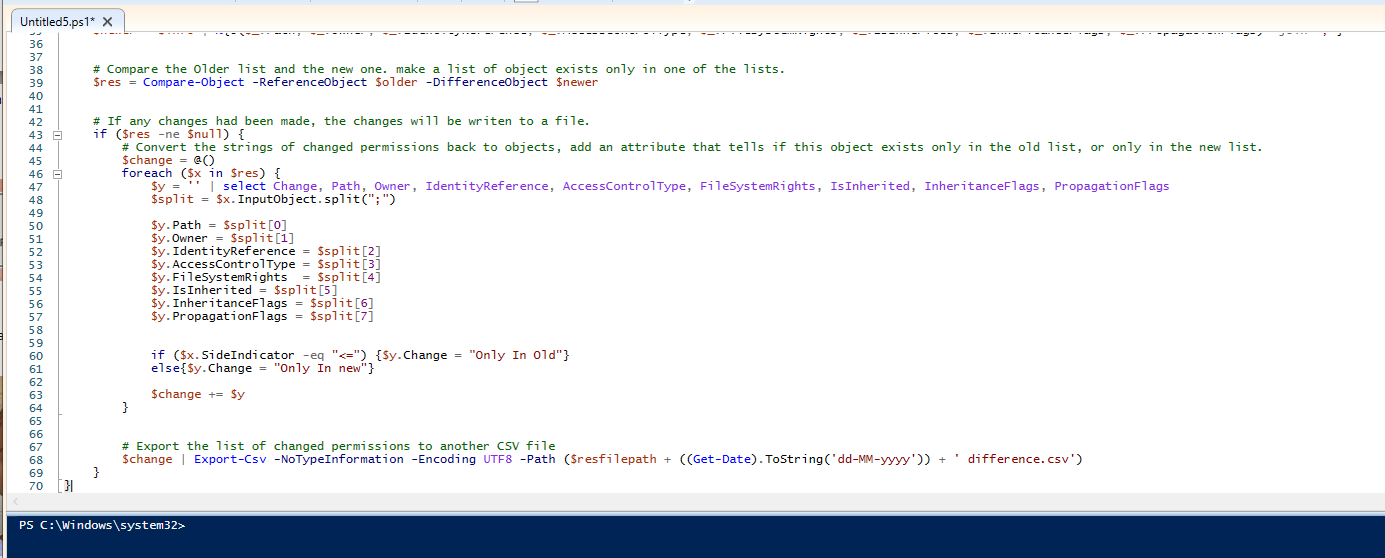
Lines 39-55 contain a loop that iterates over the full list of differing permissions. Each item is processed back from a string to an object. A new attribute not present in the regular permission list is added to the object - indicating which side of the comparison this entry belongs to. Here is how it works:
Line 40 creates an empty object template with the attributes we want to populate. Each attribute will receive the portion of the string that represents its value.
Line 41 splits the string into an array where each element contains the value of a single attribute.
Lines 43-50 place each value from the split array into its designated attribute in the object prepared in line 40.
Lines 51-52 set the value of the last attribute. This attribute indicates whether the permission exists only in the new list or only in the old one.
This makes it possible to identify permissions that were added or removed.
A permission that existed previously and was modified will appear twice - the old version shows up as existing only in the old list, and the new version shows up as existing only in the new list.
Finally (line 55) the processed permission object is added to the list of processed comparison results.
Then (line 59) the list is saved to a differences file bearing the current run date.
The code:
# The root folder which the script will acuire it's permissions
$rootfolderpath = "path"
$resfilepath = 'C:\Users\user\Desktop\'
# Summery of this folder permission from previous time - 7 days ago - if exist.
$oldfile = ($resfilepath + ((Get-Date).AddDays(-7).ToString('dd-MM-yyyy')) + ' Permissions.csv')
if (Test-Path $oldfile) {$old = Import-Csv $oldfile}


# Fetch objects of folders and subfolders from this root folder, including the root folder - down to specific generation.
$folders = Get-ChildItem -Path $rootfolderpath -Directory -Recurse | ?{$_.FullName.Split("\").count -le 6}
$folders += Get-Item $rootfolderpath


# Set an array of objects, each contains permissions for 1 account on a folder.
$info = @()
foreach ($x in $folders) {
    $y = $x.GetAccessControl().access
    $y | Add-Member -MemberType NoteProperty -Name 'Owner' -Value $x.GetAccessControl().owner
    $y | Add-Member -MemberType NoteProperty -Name 'LastAccessTime' -Value $x.LastAccessTime
    $y | Add-Member -MemberType NoteProperty -Name 'Path' -Value $x.FullName


    $info += $y | select Path, LastAccessTime, Owner, IdentityReference, AccessControlType, FileSystemRights, IsInherited, InheritanceFlags, PropagationFlags
}


# Export the list of permissions to CSV file.
$info | Export-Csv -NoTypeInformation -Encoding UTF8 -Path ($resfilepath + ((Get-Date).ToString('dd-MM-yyyy')) + ' Permissions.csv')


# If there is an older file from previous run, compare permissions.
if (Test-Path $oldfile) {
    # Convert object of an account permissions to a string, all attributes delimited with semicolon. makes it easy to compare.
    $older = $old | %{@($_.Path, $_.Owner, $_.IdentityReference, $_.AccessControlType, $_.FileSystemRights, $_.IsInherited, $_.InheritanceFlags, $_.PropagationFlags) -join ";"}
    $newer = $info | %{@($_.Path, $_.Owner, $_.IdentityReference, $_.AccessControlType, $_.FileSystemRights, $_.IsInherited, $_.InheritanceFlags, $_.PropagationFlags) -join ";"}


    # Compare the Older list and the new one. make a list of object exists only in one of the lists.
    $res = Compare-Object -ReferenceObject $older -DifferenceObject $newer


    # If any changes had been made, the changes will be writen to a file.
    if ($res -ne $null) {
        # Convert the strings of changed permissions back to objects, add an attribute that tells if this object exists only in the old list, or only in the new list.
        $change = @()
        foreach ($x in $res) {
            $y = '' | select Change, Path, Owner, IdentityReference, AccessControlType, FileSystemRights, IsInherited, InheritanceFlags, PropagationFlags
            $split = $x.InputObject.split(";")

            $y.Path = $split[0]
            $y.Owner = $split[1]
            $y.IdentityReference = $split[2]
            $y.AccessControlType = $split[3]
            $y.FileSystemRights  = $split[4]
            $y.IsInherited = $split[5]
            $y.InheritanceFlags = $split[6]
            $y.PropagationFlags = $split[7]


            if ($x.SideIndicator -eq "<=") {$y.Change = "Only In Old"}
            else{$y.Change = "Only In new"}

            $change += $y
        }


        # Export the list of changed permissions to another CSV file
        $change | Export-Csv -NoTypeInformation -Encoding UTF8 -Path ($resfilepath + ((Get-Date).ToString('dd-MM-yyyy')) + ' difference.csv')
    }
}