
Monitoring Active Directory Accounts
A simple and relatively easy tool, written in PowerShell, for monitoring and tracking changes to user accounts in Active Directory. Requires minimal resources.
In the IT world, there are many tools for monitoring accounts and users. Information security tools and system management aids - the variety is wide. Some of these tools cost more, some less, and some are open source. What they all have in common is that they maintain a database that keeps growing, and usually require a dedicated server and allocated storage space for this purpose.
The options offered by the system vary from tool to tool. And in most cases, those tools are managed by information security staff. Many times, support staff whose main work is with end users do not have access to this information.
Therefore I decided to create a small process that collects information for support staff (Help-Desk) and system administrators. The process does not require a dedicated server, and consumes relatively little storage space. But the options it offers are simple and basic.
The goal is to collect logs of changes to user accounts, such as - creation, deletion, disabling, enabling, password change, and detail changes. From each such event, to collect several data points and place them in a CSV table.
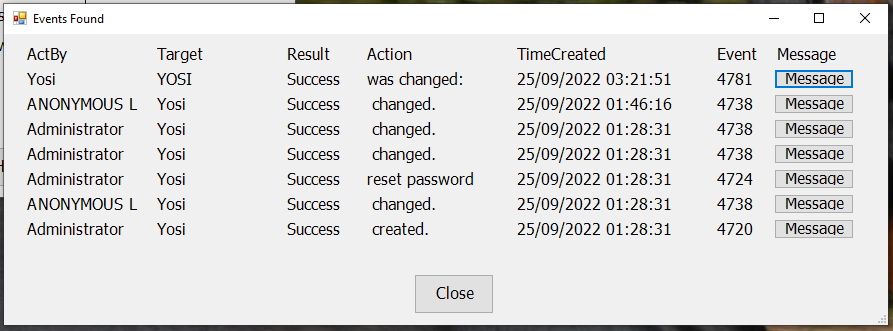 Account changes
So for every change to a user account, we have the following information:
-
The account that changed.
-
Who changed it.
-
A timestamp.
-
Result - success or error.
-
Type of action.
-
Event identifier.
-
The log message - optional.
The consideration of whether to include this field (the message) or not relates to the file size. After all, most of the data is contained in the message and collected from it. Omitting the message will significantly reduce (percentage-wise) the volume of the file that stores the data.
The data is stored in monthly files. One data file for each month, and one log file for each month.
An additional option is to set a specific number of months after which the files will be deleted. This allows maintaining a relatively stable allocation of storage space for this purpose.
The tool itself is built from three components:
-
A PowerShell script.
-
A scheduled task that runs the script at fixed time intervals.
-
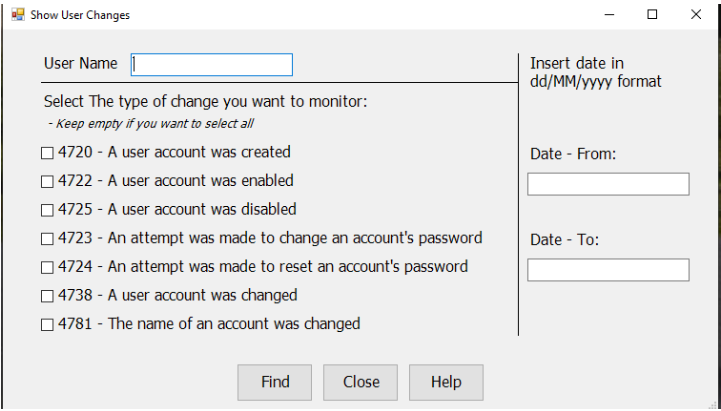
A user interface (GUI) that can find specific data within the data files.
For example - finding changes that were made to a specific account, on a specific date.
I have not yet built the user interface, and that will wait for the next article. For now I will present the script and explain its structure. After all, anyone who wants to find the data can simply open a CSV file in Excel. There you can filter by the column of your choice, or simply use Excel’s search within the file.
Script Structure:
Notes:
-
The writing is based on the script as it is displayed in the PowerShell code editor - PowerShell ISE. References to line numbers are directed to that same format. Anyone who wants to go through the code according to my explanations is recommended to copy it into PowerShell ISE and follow along simultaneously.
-
The script is documented in very great detail. The goal is to teach and present in detail the way the script was written, and the ideas behind it.
Log Function (lines 17-57):
The code begins on line 17, with the Log function. The purpose of the function is to monitor the script’s operation. The main use of the monitoring concerns the frequency of the script’s runs.
The script is intended to run through a scheduled task at fixed time intervals. Too high a frequency will repeatedly find the same logs that were already found in previous runs. That information has already been processed and saved to file. Wasteful.
On the other hand, too low a frequency will cause data loss. The logs database from which the information is collected is perhaps the most active part of the logs database. Because of this, new logs overwrite old ones, and logs that are too old cannot be found there.
With each run of the script, the following will be written to file (among other things):
- How many new logs were added to the data file
- How many of the logs collected in this run were already in the file from previous runs.
If the number of old logs is high, the time interval between runs can be lengthened. If the number of old logs is low or stands at 0, the frequency needs to be increased.
It is best to start with high frequency, and carefully lengthen the interval, according to the data.
Input:
The function receives five parameters. One mandatory parameter - the type of run that was performed, from three types. And four additional non-mandatory parameters that are sent during a regular run. During an initial run, or during the first run of each month, this data is not recorded.
Creating a variable containing the path where the log file sits.
When the function runs, it first records the timestamp.
After that, there is a Switch-Case that defines the next documentation step according to the run type - as mentioned.
In a regular run, the number of new logs added to the list is recorded, how many of those found on the servers were already in the list, how many were in the file at the beginning of the process, and how many entered the file at the end of the process.
In the other two run types, a short message is recorded at this stage saying that a run of such-and-such type was performed.
Finally a dividing line is entered, to separate the data of the current run from the next run.
Variable Definition (lines 60-79):
As the start of the main process, various variables are defined that are intended to serve the process:
-
Filename. The date in a format that includes only the current month and year is saved as a string. This string serves as the name for the data file, and also for the log file. Created as a global variable, to save passing it to the log function.
-
Lastmonth. Comes into use at the first run of each month, when the date changes and some logs need to be saved to a file that does not bear the current month’s date.
-
Oldtodelete. Here a date is set based on a certain number of months back, to set a lifecycle for the data files.
-
Path. A string containing the path to the folder where the data files reside. The variable is global, to save passing it to the log function.
When choosing this location, you need to create within it the folder for the log files.
-
Filter. Contains a hashtable type table (key-value), with the search attributes through which the required logs are filtered from all the logs existing on the server.
LogName - points to the specific folder in the logs database where the search needs to happen.
ID - there is here a list of EventIDs each of which points to changes in an account.
StartTime - I am not sure how relevant this is, because in an active domain usually old logs do not remain in the logs database. But this attribute sets a point in time from which logs need to be found. Here it is defined that every time the process runs, it needs to find all logs going back 1,300 days.
-
Dc. An array containing a list of all DC servers in the domain. No read-only DC is needed, since the entire process records changes to accounts. Changes do not occur in RODC.
-
Logs. An empty array that will collect into it all the logs found in the search across all DCs.
Collecting Logs (lines 82-85):
Here there is a for loop that runs through all the DCs in the list collected above, and in each of them searches for logs according to the defined filter.
At the end of the command there is a Pipeline pass that receives each of the logs and takes certain properties from it. Some of the properties do not currently exist, but the mere selection of that property defines a cell for it in each of the logs. A cell we can populate later with appropriate data.
Processing the Data (lines 88-103):
At this stage a loop runs through all the logs found in the previous stage, and from each log extracts the information we want, and arranges it in a format we can store.
Let’s follow the stages of data processing:
-
Message - takes the main message of the log, and breaks it into an array where each element contains one line from the main message. This allows collecting data found on a specific line.
-
Sub - a temporary variable intended to store the name that appears in the second half of the fifth line.
-
X.ActBy - contains the string derived in the previous line. Records the user who performed the action.
-
Sub - once again, derives and contains the name that appears in the second half of the 11th line.
-
X.Target - contains the string derived in the previous line. Records the name of the account that changed. The account on which the action was performed.
-
X.Result - contains the result messages of the action. Such as error, failure, success, etc. The data comes from a property containing an array and passes to the current cell. There it will sit in a way where all array members are joined into a string, with a comma separating them.
-
X.Action - contains the title of the action that was performed. Such as - user creation, password change, etc.
-
X.TimeCreated - takes the log’s timestamp, changes it to the format set in the script, and stores it that way.
This is because there can be cases where every time a raw date is saved to a CSV file, it gets translated to a different format. A minor change in the date format will cause problems when comparing logs that the script found on the DC against logs already in the file. This can cause duplicates, since due to format incompatibility, the same log can be saved twice in two different timestamp formats.
Data Comparison, Division and Information Storage (lines 105-156):
At this stage, information about account changes has already accumulated and been processed into a convenient, uniform, and readable form. Now the information needs to be stored, while being careful not to store in duplicate, information that already exists there.
Therefore this stage includes three options:
- If a file bearing the current month’s date exists in the designated folder, a regular routine run is performed (lines 105-118).
In this case:
All the information that was uploaded there in previous runs is collected from the file (line 109).
From the array containing the list of all logs found in the DCs, only those not found in the file are filtered. These go into a variable containing several specific properties (line 111).
As mentioned, you can decide to remove from the list of these properties, the Message property. The other properties already contain all the necessary information, and it is there only because sometimes when Attributes are changed on a certain account, this property contains which Attribute changed.
This is not essential, and takes up volume. You can decide to omit it.
The new logs that passed the filter are added to the old ones collected from the file (line 113).
All these logs are saved back into the file (line 114).
A call to the Log function, which will add to the log file a record of this run (line 117).
- If no file bearing the current month’s date exists, but a file bearing last month’s date does exist - the month has probably just changed, and this is the first run of the new month (lines 119-138).
In this case:
Pulling the data from the previous month’s file (line 124).
From the new logs collected from the DCs, all logs whose timestamp belongs to the previous month are filtered into a variable (lines 126-127).
The same applies here - you can omit the message attribute to save storage space.
From the new logs collected from the DCs, all logs whose timestamp belongs to the new month are filtered into another variable (lines 129-130).
The new logs belonging to last month are added to the logs collected from the file, and the total is stored back in the same file (lines 132-133).
If logs belonging to the new month were found on the servers, those logs are stored in a new file bearing the current/new month’s date (line 135).
(If there are no logs from the new month, no such file will be created, and the next run of the script will repeat the current pattern. Until logs belonging to the current month are found.)
A call to the Log function to record the current run (line 138).
- Otherwise - meaning - if there is no file of the current month in the designated folder, and also no file from last month, it appears as if this is the first time the process has run (or that it was disabled for a long time). This means starting from scratch (lines 140-156).
In this case:
From all the logs found in the DC, a filter is performed for logs belonging to months prior to the current month (lines 144-145).
From all the logs found in the DC, a filter is performed for logs belonging to the current month (lines 148-149).
The same applies here, with filtering and property selection, you can omit the Message attribute.
If logs belonging to previous months were found, they will go to a file called Old (line 150).
Export all logs belonging to the current month to a file bearing the current month’s date (line 152).
A call to the Log function to record the current run (line 155).
Cleaning Old Files (lines 160-161):
And finally, two last lines intended to perform cleanup. You can decide to comment out both of them, and continue to accumulate and save the data.
You can decide on a lifecycle - for example, there is no need for data after a year. In this case set in the oldtodelete variable (defined on line 65) the number -12, meaning one year back. If you decide on a two-year lifecycle, that would be -24, and if you decide on half a year, it would be -6.
In these two final lines (one for data files and the second for log files), a check runs whether a file exists whose date is a specified number of months back. For example: -12. In this case a check runs whether a file exists whose date is the current month, but in the previous year.
If such a file is found, it will be deleted.
The Code:
<# This script is collecting event logs about acounts changing, proccess it and save data to csv files

If someone wants to see who create a user, reset his password or made other account modification, the

data is in the file.

There is a different file fore eache month, to avoid oversized files.

Every time the script is running, it's takes the data from last run, compare the new events occurred

since the previous run, and put it all in the file.

If the schedule to run the script is too often, there is a lot of overlapping events, comparing previous

run and the current one. if the time space between repeats is too long, some events can be missing.

Therefore, there is a function to log the process, count and compare the numbers, to know how many

overlapps there is, and how it's better to set the routine schedule for the script running.

Also, there is a cleanup at the end, to delete old files.


This function logging the proccess for comparing and monitoring. the funcrion takes 1 mandatory

parameter, and another 4 optional parameters.

The optional parameters are required only for routine run. at first new running, or first run of

each month, the function doesn't do comparing. just logs the process timestamp, and the type of run. #>

function Log {

   # Parameters that the function receiving from the main process.

   param (

       # This parameter gets the type of run - out of 3 options.

       $case,

       # The number of new events found during current run, and wasn't found in the file.

       [Parameter(Mandatory = $false)]$new = $null,

       # The number of overlapping events. found now in the DC, but already exist in the file.

       [Parameter(Mandatory = $false)]$old = $null,

       # The total number of events found in the file, at the beginning of the process.

       [Parameter(Mandatory = $false)]$imported = $null,

       # The total number of events saved to the file at the end of the process.

       [Parameter(Mandatory = $false)]$sum = $null

   )

   # Gets the full filepath of the log file.

   $logpath = $path + "Logs\" + $filename + ".txt"

   # Log timestamp.

   Get-Date | Add-Content $logpath


   # Determine which type, out of 3 scenarios, is the current running of the script.

   switch ($case) {

       # Regular run. collect events from the file, add new events and put it all back in the file.

       "Routine" {

           # Log all the numbers in the optional parameters.

           "New events: " + $new | Add-Content $logpath

           "Old events: " + $old | Add-Content $logpath

           "Imported From file: " + $imported | Add-Content $logpath

           "Summery of records: " + $sum | Add-Content $logpath

       }

       # The first run of the month.

       "NewMonth" {

           "Starting New Month" | Add-Content $logpath

       }

       # Start collecting data from scratch.

       "Beginning" {

           "Begin recording" | Add-Content $logpath

       }

   }

   # Delimiter to seperate between logs of different runs.

   "=========================" | Add-Content $logpath

}


# The file name is the date of current month.

$global:filename = (Get-Date -Format "MM-yyyy").ToString()

# At the first run of every month, can be found som events occurred at the end of previous month.

# Those are save to the file of the previous month.

$lastmonth = (Get-Date).AddMonths(-1).ToString("MM-yyyy")

# Defind the month that is out of perioud to keep save the data. the data of this month will be deleted.

$oldtodelete = (Get-Date).AddMonths(-12).ToString("MM-yyyy")

# The path of the folder where all the files is saved.

$global:path = "folder\subfolder\"


# Event-Log search filter builded as a hushtable, contains search parameters to find the required event logs.

$filter = @{

   LogName = 'Security'

   ID = 4720, 4022, 4723, 4724, 4725, 4738, 4781

   StartTime = (Get-Date).AddDays(-1300)

}


# List of DC's in that domain. no need to include RODC, since no user changes happens there.

$dc = "dc01", "dc02", "dc03"

# An array to get the list of all the logs fund in the search.

$logs = @()


# Loop all DC's in the list, and search for account-change events in there. output specific attributes.

foreach ($x in $dc) {

   $logs += Get-WinEvent -FilterHashTable $filter -ComputerName $x | `

   select ActBy, Target, Result, Action, KeywordsDisplayNames, TimeCreated, Id, Message

}


# Loop all logs found in all DC's, and proccess them. collecting peaces of data and place it in the table.

foreach ($x in $logs) {

   # Breakes the log message into lines. to collect certain info of some lines.

   $message = $x.Message.Split("`n")

   # Get the user who had conducted the change, put it in ActBy column.

   $sub = $message[4].Split(":")[1]

   $x.ActBy = $sub

   # Get the changed account, put it in Target Column.

   $sub = $message[10].Split(":")[1]

   $x.Target = $sub

   # The result message of the action in the log.

   $x.Result = ($x.KeywordsDisplayNames | %{$_}) -join ","

   # What kind of action had been logged.

   $x.Action = $message[0]

   # Make sure all timestamps are the same format.

   $x.TimeCreated = $x.TimeCreated.ToString("dd/MM/yyyy HH:mm:ss")

}


if (Test-Path ($path + $filename + ".csv")) {

   # If there is a file of current month.


   # Get all data from the file.

   $events = Import-Csv ($path + $filename + ".csv")

   # From the logs found in the DC's, filter only those which is not already in the file - this are new logs.

   $new = $logs | ?{$_.TimeCreated -notin $events.TimeCreated} | select ActBy, Target, Result, Action, TimeCreated, Id, Message

   # Add the new logs to the olds from the file, and put all to gather in the file.

   $sum = $events + $new

   $sum | Export-Csv -NoTypeInformation -Encoding UTF8 -Path ($path + $filename + ".csv")


   # Log the process, and the numbers of the logs fund in DC's, in the file, the overlapping logs, and the total number of the logs.

   Log -case "Routine" -new $new.count.ToString() -old ($logs.Count - $new.count).ToString() -imported $events.count.ToString() -sum $sum.count.ToString()


} elseif (Test-Path ($path + $lastmonth + ".csv")) {

   # If there is no file of the current month, but there is a file of the previous month - happens at the beginning of every month.

   # Because after the date is changed overnight, sometimes several runs of this type can be done, before new logs will be found.


   # Get all data of the previous month from the file.

   $events = ($path + $lastmonth + ".csv")

   # From the new logs found on the DC's, filter thos which occurred before the month had changed, and therefore belong to the previous month.

   $newlastmonth = $logs | ?{$_.TimeCreated.Substring(3,7) -eq $lastmonth} | ?{$_.TimeCreated -notin $events.TimeCreated} `

   | select ActBy, Target, Result, Action, TimeCreated, Id, Message

   # From the new logs found on the DC's, filter thos which occurred After the beginning of the new month.

   $new = $logs | ?{$_.TimeCreated.Substring(3,7) -eq $filename} | ?{$_.TimeCreated -notin $events.TimeCreated} `

   | select ActBy, Target, Result, Action, TimeCreated, Id, Message

   # The total logs of last month, put it in the file of the last month.

   $sum = $events + $newlastmonth

   $sum | Export-Csv -NoTypeInformation -Encoding UTF8 -Path ($path + $lastmonth + ".csv")

   # If logs of the new month have been found, put it in a file for this month.

   if ($new.count -gt 0) {$new | Export-Csv -NoTypeInformation -Encoding UTF8 -Path ($path + $filename + ".csv")}


   # Logg the process.

   Log -case "NewMonth"


} else {

   # If there is no file of corrent month, nore for last month, the process begin from scratch.


   # Take all the logs occured before of the beginning of the current month.

   $old = $logs | ?{$_.TimeCreated.Substring(3,7) -ne $filename} | ?{$_.TimeCreated -notin $events.TimeCreated} `

   | select ActBy, Target, Result, Action, TimeCreated, Id, Message

   # Take all the logs occurred during the current month

   $new = $logs | ?{$_.TimeCreated.Substring(3,7) -eq $filename} | ?{$_.TimeCreated -notin $events.TimeCreated} `

   | select ActBy, Target, Result, Action, TimeCreated, Id, Message

   # If there is logs older then current month, put it in a file for older logs.

   if ($old.count -gt 0) {$old | Export-Csv -NoTypeInformation -Encoding UTF8 -Path ($path + "Old.csv")}

   # Put in a file of current month, all matched logs.

   $new | Export-Csv -NoTypeInformation -Encoding UTF8 -Path ($path + $filename + ".csv")


   # Log the process.

   Log -case "Beginning"

}


# This lines is optional. it can be marked or be used. it's there to delete files after certain amount of months.

# The amount of months to keep the files and it's data, determined in the "oldtodelete" variable, in line 65.

if (Test-Path ($path + $oldtodelete + ".csv")) {Remove-Item ($path + $oldtodelete + ".csv") -Force}

if (Test-Path ($path + "Logs\" + $oldtodelete + ".txt")) {Remove-Item ($path + "Logs\" + $oldtodelete + ".txt") -Force } .