
User Experience in the Windows 11 Upgrade
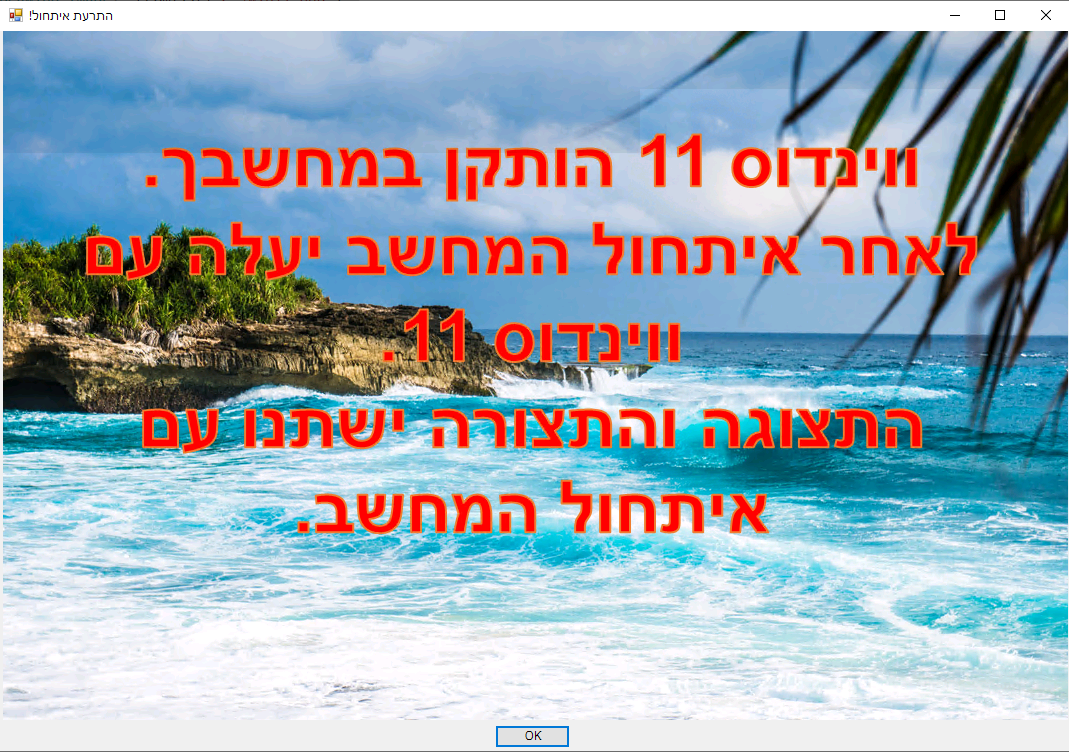
Displaying a popup notification to a user via an image that opens on their screen. This method allows updating users in a way they cannot ignore.
From time to time I publish an article on system administration or information security, with PowerShell being the favorite tool.
This time we will deal with distributing a popup notification to users. A notification that will update them on a certain topic in a way they cannot ignore.
The topic currently on the agenda is upgrading all organization users to Windows 11. And this can be done in three ways, which I rank by user experience:
-
Installing the update as part of regular Windows updates, a process transparent to the user. After the update completes, the small, regular notification popup will appear in the lower corner of the user’s screen. The popup will inform the user that the computer needs a restart in order to complete the update.
Like other major updates that upgrade a version, the computer will take some time to restart. Afterward it will come up running Windows 11.
-
Distributing an update that operates in the format of an operating system installation - an upgrade. This operation disables the user for the time the upgrade takes, and afterward they continue working normally. Except that now they are working on Windows 11.
-
Formatting the computer and installing Windows 11 on a clean platform.
Of all these approaches, the preferred method for service managers in the organization is the first option. The first option disrupts the user as little as possible, and the restart can be performed at their own free time.
The Problem:
But there is a catch. Since the process is transparent to the user, the user does not know that the current update will change their entire interface. After that, the entire way they are used to seeing their operating system will change. A user might be startled and think there is a malfunction after the computer starts up. In such a situation there is an overflow of calls to the help desk, or attempts to interrupt the restart process which takes longer than usual.
Therefore a way needs to be found to update the user about the process. Because the next reboot will take much longer than usual, and afterward the system’s appearance will change.
How do we do this?
The Solution:
Now I will explain the operation of the script, and at the end I will present it in full.
To begin with, the script builds a notification window. But instead of a message that can be missed or go unnoticed, the window will contain a large image. Such a window fills a significant portion of the user’s display, and stays there until it is closed.
At the end I will attach as an appendix how to build in a few simple lines a regular message window.
In the first line of the script you need to enter in the appropriate place the path to an image file. You can design the image and include any message you want in it. After that the notification window is built around the image and according to it.
- Make sure the image is not too large in terms of pixels, so it is not larger than the user’s display.
After the notification window is built (22 lines), a condition is executed that checks whether Windows 10 is installed on the computer. Because someone who has already upgraded to Windows 11 or has restarted, we don’t want the notification to pop up for them.
The script verifies that the current computer is running Windows 10. Then it checks the update history to see if the Windows 11 update has already been installed. If so, it pops up the notification window with the image.
When the image window pops up I added a line that plays a beep when the window appears. This line is commented out so it won’t run by default.
The beep is an option intended to attract attention. Most likely something like that would startle users, and it is not recommended to use it. Those who do decide to use it can use multiple beeps. We will see this later with the simple notification script.
Recommended working configuration:
- Distribute the script so it gets to the computers of the users intended for the update.
- Before the update comes down, make sure it has been distributed to everyone who needs it.
- Set up periodic execution every 10-20 minutes. This is done using an SCCM Package.
It is worth trying to see how it works on a test computer before general distribution.
Note that I left in place the line that pops up the notification, but it is commented out. Anyone who just wants to use the script to pop up a notification can copy the entire part before the condition block. Then they need to remove the comment from the last line that pops up the window.
The Script:
$pic = [System.Drawing.Image]::Fromfile('C:\win11.png')
$form = new-object Windows.Forms.Form
$form.Text = "!התרעת איתחול"
$form.Width = $pic.Size.Width + 20;
$form.Height = $pic.Size.Height + 70;
$window = new-object Windows.Forms.PictureBox
$window.Width = $pic.Size.Width + 10;
$window.Height = $pic.Size.Height + 30;
$window.Left = 3
$okButton = New-Object System.Windows.Forms.Button
$okButton.Size = New-Object System.Drawing.Size(75,23)
$okButton.Location = New-Object System.Drawing.Point((($pic.Size.Width - $okButton.Size.Width) / 2),($pic.Size.Height + 5))
$okButton.Text = 'OK'
$okButton.DialogResult = [System.Windows.Forms.DialogResult]::OK
$form.AcceptButton = $okButton
$form.Controls.Add($okButton)
$window.Image = $pic;
$form.controls.add($window)
$form.Add_Shown( { $form.Activate() } )
#$form.ShowDialog()
if (((Get-WmiObject -class Win32_OperatingSystem).Caption).substring(20,2) -eq "10") {
$Session = New-Object -ComObject "Microsoft.Update.Session"
$Searcher = $Session.CreateUpdateSearcher()
$historyCount = $Searcher.GetTotalHistoryCount()
$UpdateHistory = $Searcher.QueryHistory(0, $historyCount)
$checker = $UpdateHistory | ?{$_.title -eq "windows 11"}
if ($checker -ne $null) {
#[console]::beep(2000, 1000)
$form.ShowDialog()
}
}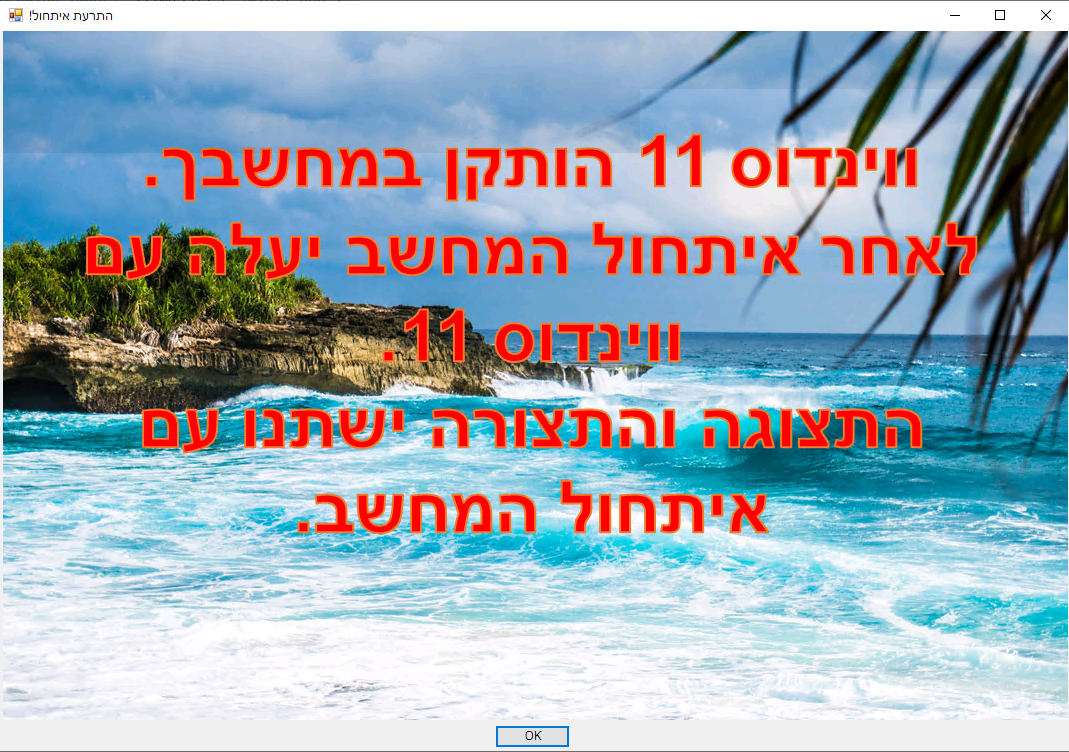 Example of an image that pops up
And Finally:
Sometimes you want to pop up a simple notification to a user under certain conditions. Here I present the simplest script that pops up a notification to a user. It contains a text message in a small window in the center of the screen, together with an OK button.
The script itself contains a variable that defines the message, and besides it just two lines of code. Simple.
Because this code is so simple and short, it can easily be incorporated into various scripts or in response to all kinds of events.
The message itself is entered in the lines between the at-signs and quotes. Not on the same line as the at-sign and quotes, only in separate lines between them.
I added a few beeps here, but as mentioned - not recommended to use. Perhaps in a case where the notification pops up in response to a prohibited action or something similar.
#[console]::beep(2000, 1000
#[console]::beep(2000, 1000)
#[console]::beep(2000, 1000)
#[console]::beep(2000, 1000)
$not = @"
!הודעה חשובה
"@
$pop = New-Object -ComObject Wscript.Shell
$pop.Popup($not)
#[console]::beep(2000, 2000) )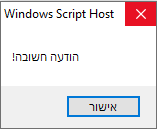 And this is what it looks like